Submitting a Request from Sierra Chart
This guide outlines workflow for submitting a Statistics Request directly from your Sierra Chart platform using the Tick2Tick Signal Uploader Custom Study.
1. Environment Setup
To begin, you must add the Tick2Tick Custom Study into your Sierra Chart Chartbook.
- Add Custom Study: Open your desired Chart inside Sierra Chart, navigate to Analysis -> Studies, and add the Tick2Tick Signal Uploader to your active list.
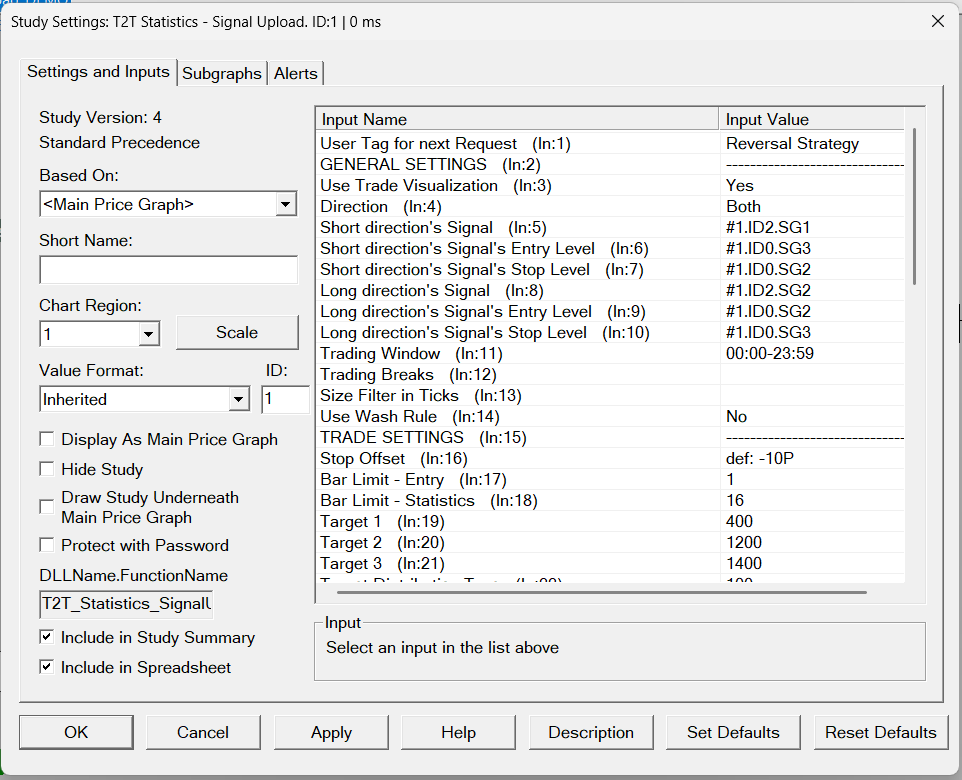
- Configure Inputs: Review the Study Inputs carefully. Ensure your Signals and other parameters are correctly defined to match your trading strategy.
- Quick Start: To get started instantly, we recommend using our pre-configured Chartbook. See how to download it here.
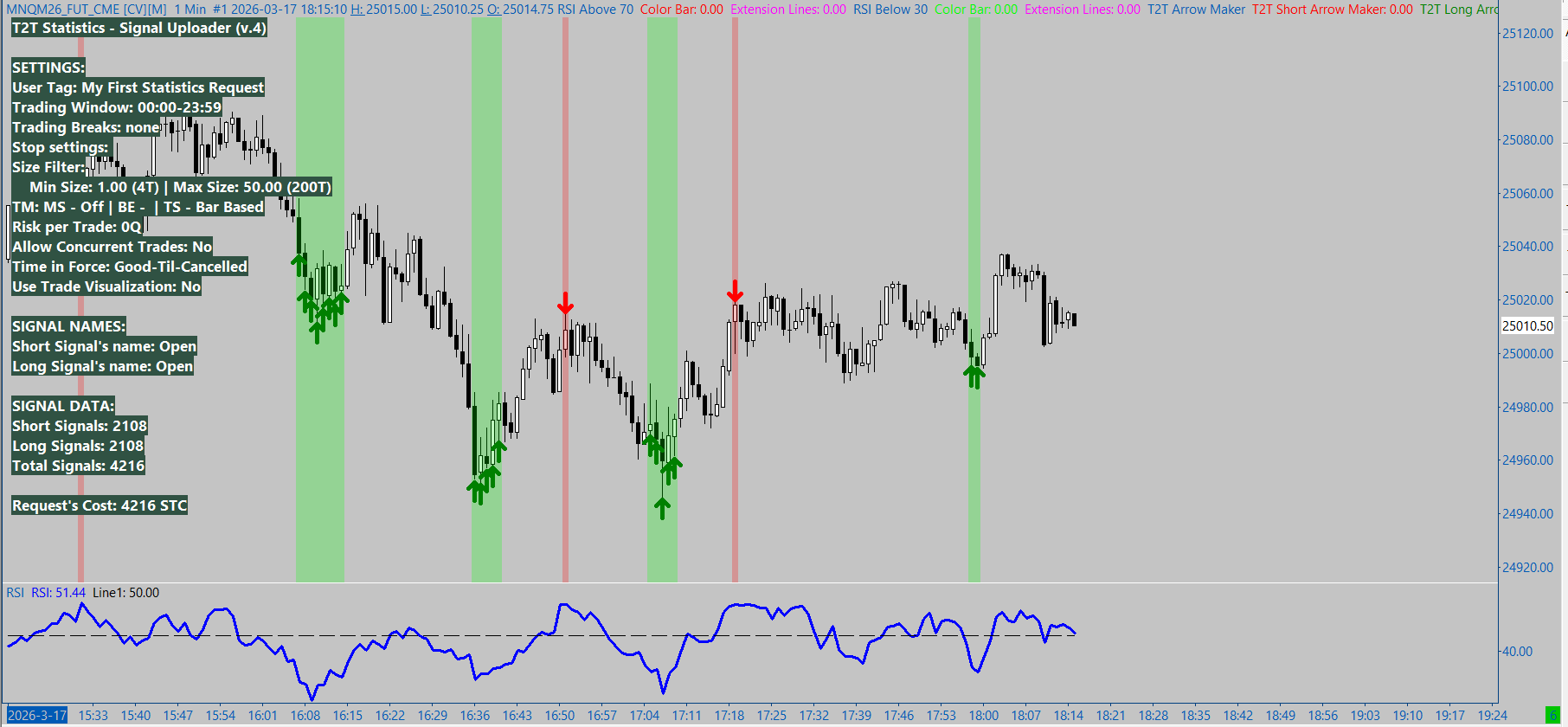
This is how the Demo Chartbook looks like after a successful setup:
2. Validating Request Parameters
Before submission, it is critical to verify the Signal count and Statistics Trade Credit costs via the On-Screen Text (OST) overlay provided by the Study.
Reviewing the Signal counts
At the bottom of the OST overlay, locate the SIGNAL DATA summary. This section provides a real-time audit of your request:
- Short and Long Signal Count: Total number of Short and Long signals identified based on your current filters.
- Total Signals: The aggregate sum of signals to be uploaded.
- Statistics Strace Credit Cost: The specific number of STCs that will be deducted from your STC Balance for this calculation.
STC Deduction Policy: Credits are only finalized for Signals that execute as a Trade (i.e., Signals that would trigger a valid Entry in real file). Upon completion of your Statistics Request calculation, any unused STCs - representing Signals that did not result in an executed Trade - are automatically refunded to your STC Balance. For details read this article..
Some of the Inputs inside the Signal Uploader Study:
3. Executing the Upload
Once your parameters are validated, follow these steps to initiate the request:
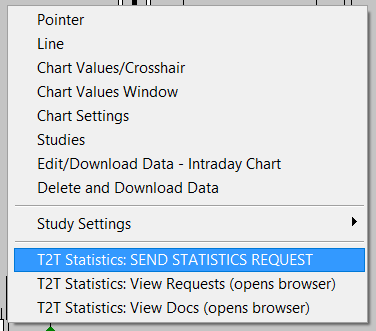
- Access Chart Shortcut Menu: Right-click anywhere within the active chart area.
- Initialize Send: Select the menu item:
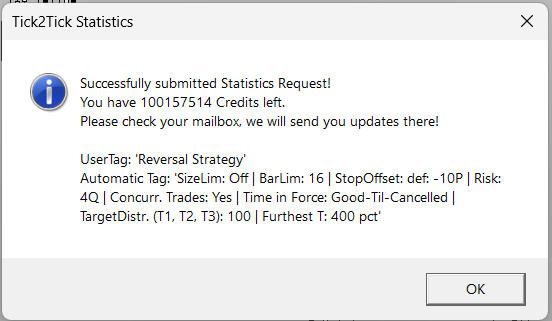
T2T Statistics: SEND STATISTICS REQUEST. - Confirmation: A system message box will appear:
- Success: You will receive a confirmation containing a summary of the Statistics Request.
- Failure: If an error occurs, the message will provide an error.
4. Next Steps
After a successful upload, your request is queued for server-side processing.
- Tracking: To monitor the status of your calculation in real-time, proceed to the Tracking your Request chapter.
- Support: If you encounter persistent upload errors, please gather your Sierra Chart logs and contact our technical support team via the Tick2Tick Dashboard by submitting a Ticket here.
5. Limitations
Currently, Tick2Tick Statistics can receive Requests only from the following Data/Trade Services:
- Teton CME Routing
- SC Data